How to Find My IP Address
You have two IP addresses. Your public IP, the one websites see, is
216.73.216.214 from Amazon.com, Inc..
Your local IP, used inside your home network (usually 192.168.x.x or 10.x.x.x), is in your
device's network settings: on Windows run ipconfig, on a Mac open System Settings › Wi-Fi ›
Details, on a phone open your Wi-Fi network's details. The same steps show how to find an IP address on
any other device below.
Your public IP 216.73.216.214
- VersionIPv4
- IPv6
- ProviderAmazon.com, Inc.Your provider
- Shared byEvery device on your home network: your router shows this one address to the internet.
Read from your connection to this page. See your full IP details: location, IPv6, VPN and proxy check.
Public or Local IP: Which One Do You Need?
Use your public IP for anything on the internet (a game server, an allowlist, remote access) and your local IP for anything at home (a printer, port forwarding, router settings).
| Public IP | Local (private) IP | |
|---|---|---|
| Who sees it | Every website and app you use | Only devices on your home network |
| Looks like | 203.0.113.45 or an IPv6 address | 192.168.1.23, 10.0.0.12, 172.16.0.5 |
| Belongs to | Your router, from your internet provider | Each device, from your router |
| You need it for | Game or work servers, allowlists, remote access, support requests | Printer setup, port forwarding, router and camera settings, file sharing |
| Where to find it | The box at the top of this page | Your device's network settings (next section) |
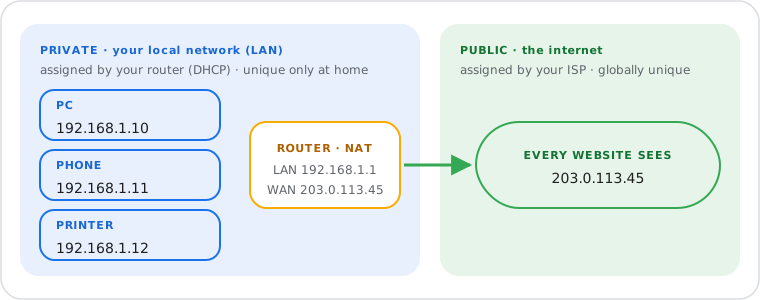
The private ranges (192.168.0.0/16, 10.0.0.0/8 and 172.16.0.0/12) are reserved for home and office networks by RFC 1918; the example addresses on this page come from the blocks reserved for documentation (RFC 5737 for IPv4, RFC 3849 for IPv6). The details: public vs private IP.
How to Find Your Local IP Address on Your Device
Open your Wi-Fi or Ethernet connection's details and read "IPv4 address" or "IP address"; the steps for the device you're using are open below.
Windows 11 Settings or ipconfig
- Open Settings › Network & internet.
- Click Wi-Fi, then your network's properties (for a cable: Ethernet).
- Read IPv4 address.
ipconfig | findstr /i "IPv4"
Paste it in Command Prompt (Win + R, type cmd, Enter). Plain ipconfig lists every adapter: read the one you're connected with.
Windows 10 Settings or ipconfig
- Open Settings › Network & Internet › Status.
- Click Properties under your connection.
- Read IPv4 address.
ipconfig | findstr /i "IPv4"
Mac System Settings or Terminal
- Open System Settings › Wi-Fi (for a cable: Network › Ethernet).
- Click Details… next to the network you're connected to.
- Open TCP/IP and read IP address.
ipconfig getifaddr en0
en0 is Wi-Fi on most Macs; if nothing prints, try en1. Older macOS: System Preferences › Network shows the address under your connection.
iPhone / iPad Wi-Fi details
- Open Settings › Wi-Fi.
- Tap ⓘ next to the network you're connected to.
- Read IP Address under IPv4 Address.
On mobile data your phone has no local IP to look up: what matters there is the public IP at the top of this page.
Android Wi-Fi details
- Open Settings › Network & internet › Internet (Samsung: Settings › Connections › Wi-Fi).
- Tap the gear next to your network (Samsung: the gear, then View more).
- Read IP address.
Menu names differ a little between brands and Android versions; the address is always in your Wi-Fi network's details.
Linux hostname -I
hostname -I
Prints every local address of the machine. For one line per network card: ip -brief address. With a desktop, the network settings show it under your connection too.
Chromebook Network settings
- Click the clock area, then your Wi-Fi network, then the network's name again.
- Open Network.
- Read IP address.
The address you find here usually starts with 192.168, 10 or 172.16–31: that's normal. On the same screen you'll often see the router or gateway address too: what the router IP is for.
How to Find Your IP Address From the Command Line
Your local IP comes from ipconfig (Windows), ipconfig getifaddr en0 (Mac) or hostname -I (Linux); your public IP from curl https://ip.whatismyipnow.com on all three.
| System | Local IP | Public IP |
|---|---|---|
| Windows 10 / 11 | ipconfig | curl https://ip.whatismyipnow.com (Command Prompt; in PowerShell type curl.exe) |
| Mac | ipconfig getifaddr en0 | curl https://ip.whatismyipnow.com |
| Linux | hostname -I | curl https://ip.whatismyipnow.com |
curl https://ip.whatismyipnow.com
It prints only your public IP, nothing else, so it works in scripts. Add ipv4. or ipv6. in front of the name to ask for one version, or /json at the end for {"ip":"…"}. Use https://: some providers answer plain-HTTP requests from their own proxy, which can show a different address.
How to Find the IP Address of a Printer, Roku, Console or Other Device
Most devices show their IP in their own network settings; for anything without a screen, your router's list of connected devices shows every local IP.
Printer
- On the printer: open its Wi-Fi or network settings on the screen, or print the network configuration (or network status) page from its menu. The IP is on it.
- On Windows: Settings › Bluetooth & devices › Printers & scanners › your printer › Printer properties › Ports: a network printer's port usually carries its IP.
- HP, Canon, Brother, Epson: the menu names differ by brand and model; the printer's manual calls it the network configuration or network status report.
Roku
On the Roku: Settings › Network › About shows its IP address.
PlayStation and Xbox
- PS5: Settings › Network › Connection Status › View Connection Status.
- Xbox Series X|S and One: Settings › General › Network settings › Advanced settings.
Smart TV, camera or anything else
Open your router's settings page and look for the list of connected devices (often called "Devices", "Clients" or "DHCP clients"): it shows each device's name and local IP. How to open your router. Unknown names? Look up the maker from the MAC address with our MAC address lookup.
Your router
Your router's address is the default gateway in the same network details as above, usually 192.168.1.1, 192.168.0.1 or 10.0.0.1. Find your router IP, step by step.
A website
Type the domain into our website to IP lookup: it shows the website's IPv4 and IPv6 addresses.
Can You Find Someone Else's IP Address?
Only when they connect to something you run, like your website or game server; you can't look up someone's IP from their name, phone number, email address or social profile.
- Email: big webmail services such as Gmail don't put the sender's IP in the message. Some other senders' headers still show it: paste the headers into our email header analyzer to see the path a message took.
- Links: "IP logger" links record the IP of whoever clicks them; scammers use them, so don't open short links from strangers.
- What an IP gives away: an approximate city and the provider's name, not a name or a street address. What someone can do with your IP.
Got an IP from a log or a message? IP lookup shows its country, city and network.
Why Does My IP Address Change?
Most providers give out public IPs dynamically, so yours can change when your router restarts; your router does the same with local IPs on your devices.
- Public IP: home and mobile connections usually get a different one from time to time; a fixed one is a "static IP", an option some providers sell. Static vs dynamic IP.
- Local IP: your router hands them out (DHCP). To keep a printer or camera on the same address, reserve it in the router.
- IPv6: devices often have several IPv6 addresses, and some change daily for privacy. Test your IPv6.
Frequently Asked Questions
How do I find my IP address quickly?
ipconfig, on a Mac open System Settings › Wi-Fi › Details, on a phone tap your Wi-Fi network.Is 192.168.x.x my IP address?
Why do two websites show me different IP addresses?
Can a website see my local IP address?
.local name, even from the WebRTC feature that used to reveal it. Our WebRTC leak test shows what your browser gives away.Does my IP address show my exact location?
How do I hide or change my IP address?
Next steps