What Is an SSID? Your Wi-Fi Network Name
An SSID (Service Set Identifier) is your Wi-Fi network's name: the one you tap in the Wi-Fi list to connect. Your router broadcasts it so devices can find the network. It's up to 32 characters, case-sensitive, and only identifies the network: the Wi-Fi password is what keeps others out.
How to Find Your SSID
It's the name of the Wi-Fi you're connected to. The router's original SSID is also printed on its label.
On Windows: click the Wi-Fi icon on the taskbar: the network marked "Connected" is your SSID. For the details (BSSID, band, channel), open Command Prompt and run netsh wlan show interfaces.
| Device | Where the SSID is |
|---|---|
| Windows | Wi-Fi icon on the taskbar, or netsh wlan show interfaces ("SSID") |
| Mac | Wi-Fi icon in the menu bar (Option-click for details) |
| iPhone, iPad | Settings › Wi-Fi, the name with the check mark |
| Android | Settings › Wi-Fi, the network marked "Connected" |
| The router | Label on the back or bottom: "SSID", "Network name" or "Wi-Fi name" |
Default names usually include the brand or the provider and a few characters, such as NETGEAR52, TP-Link_3A2F or BT-X1X1XX. That's a reason to change it: it tells everyone nearby which router you have.
How to Change Your SSID
Sign in to your router, open the Wireless (Wi-Fi) settings, type the new network name and save.
- Open your router's settings in a browser or its app. The address depends on the router: 192.168.1.1, 192.168.0.1, 192.168.1.254 (BT, AT&T), 10.0.0.1 (Xfinity). Not sure? Find your router's address.
- Find the Wi-Fi settings: often called Wireless, Wi-Fi, WLAN or Wireless Settings.
- Change the "Network name (SSID)", then Save or Apply. Change the password at the same time if it's still the one on the label.
- Reconnect your devices: they all drop off and see the new name as a new network.
Replacing a router? Give the new one exactly the same SSID and password as the old one (same capitals, same security type). Phones, TVs, printers and smart plugs then reconnect on their own, with no need to set each one up again.
How to Choose a Good Network Name
Make it easy to recognise but tell strangers nothing: no name, address or flat number, and not the router's brand.
- Leave out personal details: your name, house number or flat ("Flat 4B") tells neighbours whose network it is.
- Leave out the router's brand or provider: it hints at the default admin password.
- Keep it simple: letters, numbers, hyphens and underscores work everywhere. Emoji and accented letters can confuse older devices and smart-home gadgets.
- 32 characters at most, and capitals count:
HomeWiFiandhomewifiare two different networks. - No jokes that invite trouble ("FBI Surveillance Van", "Hack me"): they only draw attention.
One Name or Two? 2.4 GHz, 5 GHz and 6 GHz
One name for all bands is simplest: the router steers each device to the best band. Separate names help when a gadget only works on 2.4 GHz.
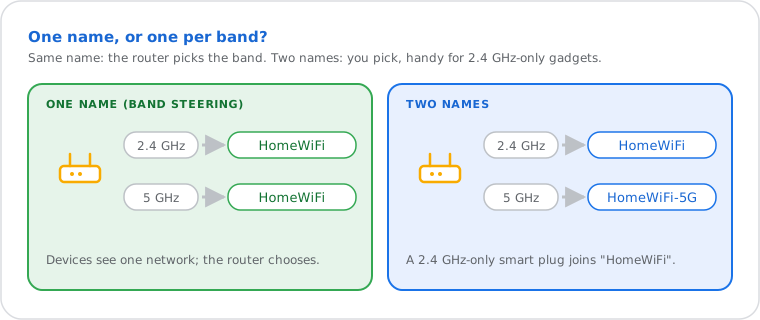
- 2.4 GHz reaches further and through walls, but is slower and crowded. Many smart plugs, cameras and printers only support this band.
- 5 GHz (and 6 GHz on Wi-Fi 6E and Wi-Fi 7 routers) is faster but has a shorter range.
- Same name on all bands (often called band steering or Smart Connect): the router picks for each device. Best for most homes.
- Smart-home device won't set up? Give the 5 GHz band its own name for a moment (
HomeWiFi-5G), set the device up on the 2.4 GHz name, then merge the names again if you like.
No: hiding the name doesn't stop anyone who wants in, and it makes connecting harder for you. A strong password does the protecting.
- A hidden network still transmits; only the name is left out of its announcements. The name appears in the air whenever one of your devices connects, and common Wi-Fi apps show hidden networks.
- Your phones and laptops keep calling out the hidden name to find it, wherever they are.
- What actually protects the network: WPA3 or WPA2 (AES) security, a password of 12 characters or more, WPS off, and a guest network for visitors.
Joining a hidden network: in Wi-Fi settings choose "Other network", "Add network" or "Hidden network", type the SSID exactly (capitals count), pick the security type (usually WPA2 or WPA3 Personal) and enter the password.
SSID, BSSID and Password: What's the Difference?
The SSID is the network's name, the BSSID is the address of one access point's radio, and the password lets a device join.
| Term | What it is | Example |
|---|---|---|
| SSID | The network's name, shown in the Wi-Fi list | HomeWiFi |
| BSSID | The MAC address of the radio you're connected to; each band and each mesh unit has its own | 3C:22:FB:12:34:56 |
| Password | The key (passphrase) that lets a device join; WPA2 or WPA3 encrypts the traffic with it | On the label, or the one you chose |
| Guest SSID | A second network name for visitors, kept apart from your own devices | HomeWiFi-Guest |
Your Wi-Fi name has nothing to do with your IP address: websites never see your SSID. Your phone's hotspot has an SSID too: on an iPhone it's the phone's name (Settings › General › About › Name); on Android, Settings › Network › Hotspot › Hotspot name.
Wi-Fi Name Not Showing? Try These Fixes
Usually the router's Wi-Fi is off or restarting, the network is hidden, or your device doesn't support that band or channel.
- Restart the router (unplug for 30 seconds) and wait two minutes for the Wi-Fi light.
- Check that Wi-Fi is on in the router: some have a Wi-Fi button, and some turn Wi-Fi off on a schedule.
- Hidden? Add it by name (above).
- Older device? It may not see 5 GHz or 6 GHz networks: connect to the 2.4 GHz name.
- Channel 12 or 13? Devices sold in North America don't use these 2.4 GHz channels: set the router's channel to Auto or 1, 6 or 11.
- Too far? Move closer. If other networks show but yours doesn't, reset the router as a last resort (it goes back to the label's SSID and password).
What Is an SSID, Technically?
In the IEEE 802.11 (Wi-Fi) standard, the SSID names a service set: one or more access points that form the same network.
It's a field of 0 to 32 bytes that the router includes in its beacons, small announcements it sends about ten times a second, and in its replies to devices searching for networks. Because it counts bytes, not letters, an emoji or accented letter uses more than one of the 32. Several networks can share the same SSID; your device tells them apart by their BSSID and by the password that works.