1
Click Run Speed Test
Click the Run Speed Test button. The nearest test server is selected automatically — no IP address or hostname input is required.
Internet Speed Test |
Test servers are chosen near your country (US), found from your IP address.
An internet speed test measures the real-time performance of your broadband connection by transferring data packets between your device and a remote test server. It reports four metrics: download speed (data arriving at your device in Mbps), upload speed (data sent from your device in Mbps), ping latency (round-trip time in milliseconds), and jitter (variation in latency). All four determine whether your connection handles streaming, gaming, video calls, and large file transfers without interruption.
Measure your broadband download speed, upload speed, ping, and jitter with one click — no input required.
Each metric measures a different aspect of connection quality. Throughput (download and upload) determines how much data can move. Latency (ping) and jitter determine how reliably and responsively that data arrives.
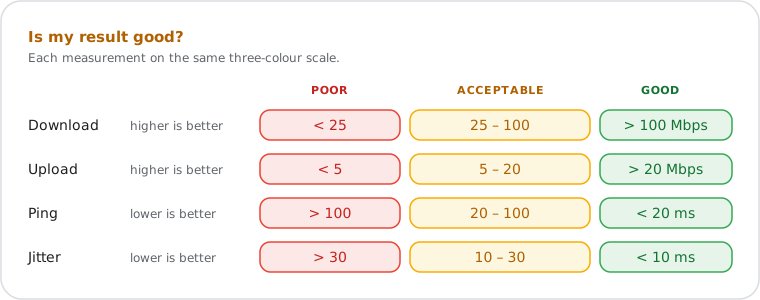
| Metric | Unit | Good | Acceptable | Poor |
|---|---|---|---|---|
| Download Speed | Mbps | >100 Mbps | 25–100 Mbps | <25 Mbps |
| Upload Speed | Mbps | >20 Mbps | 5–20 Mbps | <5 Mbps |
| Ping (Latency) | ms | <20 ms | 20–100 ms | >100 ms |
| Jitter | ms | <10 ms | 10–30 ms | >30 ms |
Most home broadband plans are asymmetric: download speed exceeds upload speed because residential usage is predominantly inbound. Fiber plans are typically symmetric. If your upload speed is consistently below 5 Mbps, video conferencing and cloud backups will experience noticeable degradation.
Required speed depends on the activity and the number of simultaneous users. The values below apply per stream or per user.
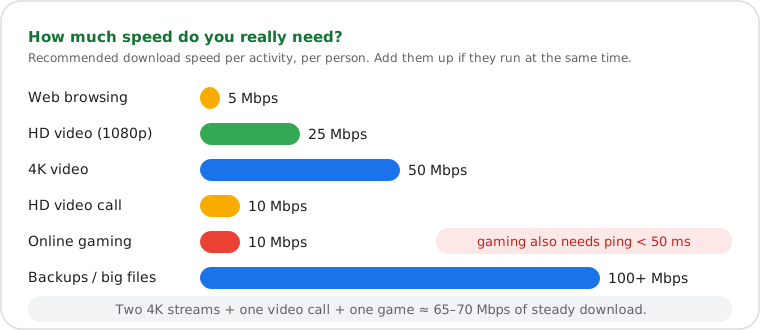
| Activity | Min. Download | Recommended Download | Ping Requirement |
|---|---|---|---|
| Web Browsing | 1 Mbps | 5 Mbps | Any |
| HD Video Streaming (1080p) | 5 Mbps | 25 Mbps | Any |
| 4K Video Streaming | 25 Mbps | 50 Mbps | Any |
| Video Conferencing (HD) | 3 Mbps up + 3 Mbps down | 10 Mbps | <150 ms |
| Online Gaming | 3 Mbps | 10 Mbps | <50 ms |
| Large File Downloads / Cloud Backups | — | 100+ Mbps | Any |
For households running multiple activities simultaneously, add the per-stream requirements. A household with two 4K streams, one video call, and one gaming session needs at least 65–70 Mbps of stable download speed at all times.
Speed tests measure throughput by opening multiple parallel TCP connections to a remote test server and transferring data continuously until the connection is saturated. RFC 6349 defines a framework for TCP throughput testing that accounts for TCP slow start and buffer sizing. The reported speed reflects the average throughput across all parallel connections during the sustained transfer phase, not the peak burst rate.
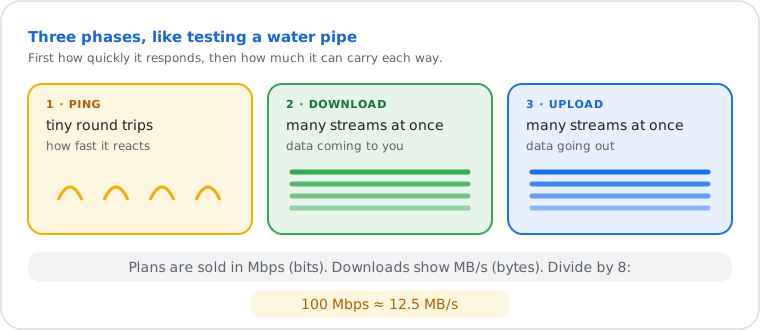
Ping latency in browser-based speed tests is measured as the TCP/HTTP round-trip time — a functional proxy for ICMP echo request/reply as defined in RFC 792, since ICMP is blocked by many firewalls and cannot be sent from a browser context. Jitter is calculated as the mean deviation between consecutive latency measurements, the same formula used by VoIP quality standards (ITU-T G.107).
Throughput is reported in Mbps (megabits per second), where 1 Mbps = 1,000,000 bits per second. Note that internet plan speeds are sold in Mbps (bits), while file transfer speeds on your device display in MB/s (bytes). To convert: divide Mbps by 8. A 100 Mbps connection transfers files at approximately 12.5 MB/s under ideal conditions.
ISP plan verification. A homeowner paying for a 300 Mbps plan runs a wired speed test during off-peak hours and gets 90 Mbps. The result is well below the contracted rate. Using the Traceroute tool reveals high latency at the first hop outside their modem, indicating a line issue rather than a Wi-Fi problem — documentation for an ISP support call.
VPN performance impact. A remote worker on a corporate VPN notices video call quality degrading mid-day. A speed test before and after enabling the VPN shows a 45% download drop and a ping increase from 18 ms to 95 ms. The result confirms VPN tunnel overhead rather than an ISP problem, narrowing the solution to a closer VPN server selection.
Gaming connection validation. An online gamer needs to verify their connection before a competitive session. Download and upload speeds are healthy, but ping reads 110 ms and jitter at 35 ms. The Ping tool confirms the latency is consistent to external hosts — pointing to server distance rather than local network instability.