1
Enter the target host
Type a public IPv4 address, IPv6 address, or hostname into the input field —
for example, 8.8.8.8, 2001:4860:4860::8888, or google.com.
Online Traceroute |
Trying to find where an IP address is located? Traceroute shows the path to it, not its location. Use IP Lookup to see the country, city and provider of any IP →
Traceroute (called tracert on Windows) is a network diagnostic tool that maps the route IP packets take to a destination host by exploiting the Time to Live (TTL) field defined in RFC 791. Each router along the path decrements the TTL by 1; when it reaches zero, the router discards the packet and returns an ICMP Time Exceeded message (RFC 792), revealing its IP address and round-trip time. Results show every router hop between the source and destination, up to 15 hops.
| Attribute | Value |
|---|---|
| Linux / macOS command | traceroute |
| Windows command | tracert |
| Probe protocol (Linux default) | UDP datagrams → ICMP Time Exceeded replies |
| Max hops (this tool) | 15 |
| Probes per hop | 1 |
| Timeout per hop | 3 seconds |
| IPv6 support | Yes — uses traceroute6 automatically |
Each row in the traceroute output represents one router (hop) between this server and the destination. The table below defines every column in the result.
| Field | Meaning | Example |
|---|---|---|
| Hop # | Sequential count of routers from this server outward. Hop 1 is the first router beyond our server (the default gateway). | 1, 2, 3 |
| IP Address | Numeric address of the router at this hop. Displayed as-is with no reverse DNS resolution (the -n flag), keeping results fast and unambiguous. |
72.14.235.1 |
| RTT | Round-trip time in milliseconds from this server to the router at this hop. Measures latency at that specific point in the path. | 12.4 ms |
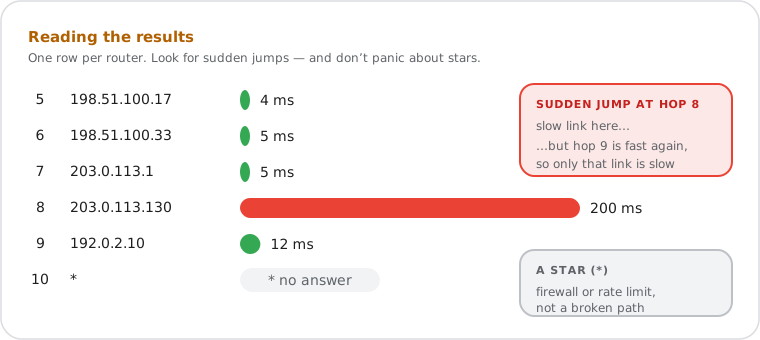
| * (asterisk) | The router did not respond within the 3-second timeout. Typically a firewall policy or ICMP rate-limiting. Does not necessarily mean the path is broken. | * |
Reading latency patterns: RTT should increase gradually hop by hop as packets travel further from the source. A sudden large jump at a specific hop — for example, 5 ms at hop 7 and 200 ms at hop 8 — points to a slow inter-network link or an AS boundary crossing at that point. If RTT normalises again at hop 9, the delay is confined to that single link.
The traceroute algorithm exploits the IP TTL field defined in RFC 791. Every IP packet carries a TTL value set by the sender; each router along the path decrements it by 1. When TTL reaches zero, the router discards the packet and sends back an ICMP Time Exceeded message (type 11, code 0 per RFC 792) to the source. That reply exposes the router's IP address and the round-trip time to reach it.
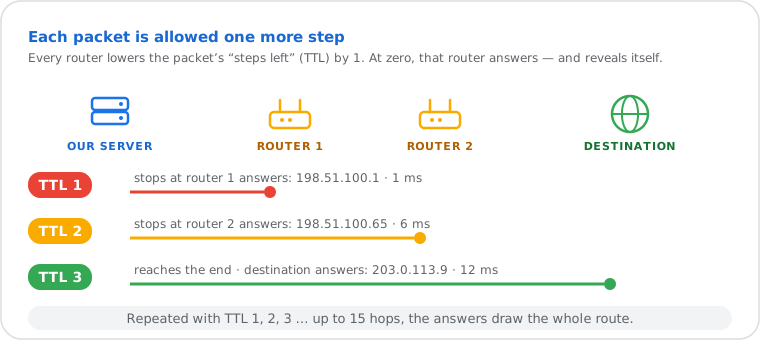
By sending successive packets with TTL values of 1, 2, 3, and so on, traceroute discovers one new router per packet. The first packet (TTL 1) expires at the first hop; the second (TTL 2) expires at the second hop; and so on until the destination is reached or the hop limit is hit.
This tool runs the Linux traceroute command for IPv4 targets and
traceroute6 for IPv6 targets, detected automatically from the input. The
flags applied are -n (numeric output, no rDNS per hop), -w 3
(3-second per-hop timeout), -q 1 (1 probe per hop), and
-m 15 (maximum 15 hops). Results stream to your browser in real time via
Server-Sent Events (SSE) — no page reload required.
Because the trace originates from an external server, results show the network path from the internet toward your target — not from your local machine. This is what makes the online tool useful: it reveals routing problems that a local traceroute cannot see.
Do it yourself
Every major operating system includes a built-in traceroute utility. The commands below replicate what this tool runs — adjust the flags to match your requirements.
tracert google.comtracert -h 15 -w 3000 8.8.8.8
-h 15 sets the maximum hop count; -w 3000 sets the per-hop
timeout to 3000 milliseconds.
Test-NetConnection google.com -TraceRouteTest-NetConnection 8.8.8.8 -TraceRoute -Hops 15traceroute -n -w 3 -q 1 -m 15 google.comtraceroute -n -w 3 -q 1 -m 15 8.8.8.8traceroute6 -n -m 15 2001:4860:4860::8888traceroute6 -n -m 15 google.comThe online tool traces from an external server in a neutral network location. Results will differ from a local traceroute because the path from your machine to the destination is different from the path from this server. Both traces are useful — a local trace diagnoses your own path; an external trace isolates whether the problem is on the public internet between the server and the target.
Diagnosing API latency to a third-party service. A DevOps engineer notices that response times to a payments API have spiked to 800 ms intermittently. A traceroute to the API server's IP shows normal RTTs through hops 1–7, then a jump from 6 ms to 210 ms at hop 8 — an AS boundary crossing between their cloud region and the provider's upstream network. The trace identifies the inter-AS link as the bottleneck, confirming the issue is upstream and outside their infrastructure.
Verifying CDN traffic routing. A network engineer deploys a new CDN configuration and needs to confirm that end users are hitting the geographically correct edge node rather than a distant origin. A traceroute to their domain shows hop 6 resolving to an IP in the expected region. The AS number visible in the hop confirms traffic is entering the CDN at the nearest point of presence rather than routing to a distant data centre.
Isolating a VPN routing problem. A remote employee reports that their VPN connection is slow only at certain times of day. The network admin runs a traceroute from an external server to the VPN gateway IP. The trace shows 15 ms RTT on all hops during normal hours but 180 ms starting at hop 5 — a congested transit provider — during peak hours. This rules out the VPN server itself and points to the upstream ISP as the cause.