192.168.0.1 — Router Login, Passwords and Setup
192.168.0.1 is the settings address of many TP-Link, D-Link and Tenda routers, and of the Virgin Media, Sky and Telstra hubs. Open it while you're connected to the router, sign in with the password on its label (or the one you created), and you can set up the internet connection, change your Wi-Fi and more.
Didn't open? Try the other usual addresses: 192.168.1.110.0.0.1192.168.1.254 or find yours in 30 seconds.
How to Log In to 192.168.0.1
Join the router's Wi-Fi (or plug in a cable), open http://192.168.0.1 and enter the admin password.
- Connect to the router. A brand-new router works even before the internet does: join the Wi-Fi name printed on its label.
- Type
http://192.168.0.1in the address bar, not the search box. Several brands also answer to a name:tplinkwifi.net(TP-Link),tendawifi.com(Tenda),routerlogin.net(Netgear). - Sign in. Check the label first; see the table below for your brand.
- "Not secure" warning? Normal for a page inside your home: the router has no public certificate.
Which Routers Use 192.168.0.1, and Their Passwords
Recent routers print a unique password on the label or make you create one; older TP-Link and Tenda use admin / admin, older D-Link admin with no password.
| Router | Also opens with | Admin password |
|---|---|---|
| TP-Link | tplinkwifi.net | Created at first login on current models; older: admin / admin |
| D-Link | dlinkrouter.local on recent models | On the label or set at setup; older: admin, password left empty |
| Tenda | tendawifi.com | Created at first login on current models; older: admin, or empty |
| Netgear (some models) | routerlogin.net | Set at setup; older: admin / password |
| Virgin Media Hub 3, 4, 5 (UK) | — | "Settings password" on the base of the Hub, not the Wi-Fi password |
| Sky hubs (UK) | — | Older SR101/SR102: admin / sky. Sky Broadband Hub: the Wi-Fi password on the back. Newer hubs: mostly the My Sky app |
| Telstra Smart Modem (Australia) | — | Username admin. Gen 1.1 and Gen 2: Telstra. Gen 3 and later: the Wi-Fi password on the bottom of the modem |
| Cox gateways (US) | Panoramic Wifi app | Mostly managed in the app; on the label for the web page |
Forgot a password you changed? Hold the reset button (a pinhole, use a paper clip) for about 10 seconds until the lights change. The router goes back to the label password, and you'll set up the internet and Wi-Fi again. On a provider hub, ask the provider first: they can often fix it remotely.
Set Up a New Router at 192.168.0.1
Plug the provider's line into the router's WAN (internet) port, open 192.168.0.1, choose your connection type, then name your Wi-Fi.
- Cable it: the cable from your fibre box, modem or wall socket goes into the port marked WAN or Internet (often a different colour), never a LAN port.
- Open 192.168.0.1 from a phone or laptop on the router's Wi-Fi and create the admin password. Keep it somewhere safe.
- Pick the connection type the setup wizard asks for. It comes from your provider, not the router:
- Dynamic IP (also DHCP or automatic): most cable and fibre lines with a provider modem. Nothing to type.
- PPPoE: many fibre and DSL lines (very common in India, for example). Type the username and password your provider gave you, not your Wi-Fi password. No PPPoE details? Call the provider.
- Static IP: only if the provider gave you fixed numbers.
- Name your Wi-Fi and pick a password (WPA2 or WPA3, 12 characters or more).
- Update the firmware when the router offers it, then test: your public IP should appear.
Some brands push their app for setup (TP-Link Tether or Deco, D-Link, Tenda WiFi). It asks the same questions; the web page and the app change the same settings.
Change Your Wi-Fi Name and Password
Sign in at 192.168.0.1, open the Wireless (Wi-Fi) settings, change the name and password, and save.
- TP-Link: Wireless (or Advanced › Wireless › Wireless Settings).
- D-Link: Settings › Wireless.
- Tenda: WiFi Settings › WiFi Name & Password.
- Virgin Media, Sky, Telstra: the Wireless or Wi-Fi section of the hub's page, or the provider's app.
Choose WPA2 or WPA3 security, never WEP or "open". If the 2.4 GHz and 5 GHz networks are listed separately, change both. Every device disconnects afterwards: reconnect each one with the new password.
Two Routers Both on 192.168.0.1? Here's the Fix
When you plug your own router into a provider box that also uses 192.168.0.1, the two clash: change one address, or turn one into a modem or access point.
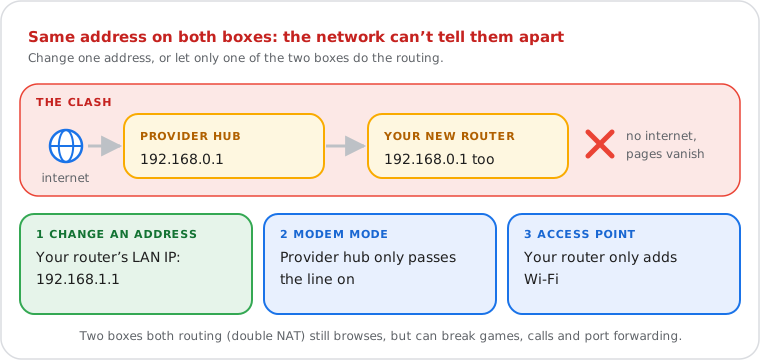
Symptoms: no internet behind the new router, the setup page "disappears", or 192.168.0.1 opens the wrong box. Pick one fix:
- Change the new router's address: in its LAN (or Network) settings, set
192.168.1.1instead of 192.168.0.1. You then reach it at the new address. - Modem mode on the provider box (Virgin Media calls it modem mode; others bridge mode): the provider box stops routing and your router does everything. On the Virgin Media Hub, its own page then moves to 192.168.100.1.
- Access point mode on your router: it only adds Wi-Fi, and the provider box stays in charge. Simple, and it keeps the provider's features working.
Two routers each doing their own routing (double NAT) works for browsing but can break gaming, calls and port forwarding.
192.168.0.1 Not Working? Try These Fixes
Usually the router uses another address, the device isn't on its network, or the address was mistyped.
- Check the address: many routers use 192.168.1.1 instead. The label, or your Default Gateway, is always right.
- Check the typing:
192.168.0.1with a zero, not192.168.o.1(letter o) or192.168.0.l(letter l).192.168.1.0and192.168.0.0are network numbers, not routers. - Check the connection: on the router's Wi-Fi or cable, with mobile data and VPN off.
- Use
http://, try another browser or a private window. - Hub in modem mode? Its page is at 192.168.100.1 now (Virgin Media).
- Restart the router (unplug for 30 seconds). Reset it only as a last resort.
Find Your Router's Real Address
Your device knows it: it's the "Default Gateway" (Windows) or "Router" (Apple) in your network details.
On Windows: open Command Prompt, type ipconfig and read "Default Gateway".
Other devices, step by step: how to find your router's IP address.
What Is 192.168.0.1, Technically?
The first usable address of the private network 192.168.0.0/24, reserved by RFC 1918 for home and office networks.
With the usual mask 255.255.255.0, the router takes 192.168.0.1 and gives your devices addresses from 192.168.0.2 to 192.168.0.254 (what the mask means). Millions of homes use the same numbers without conflict, because private addresses never travel on the internet: websites see your public IP address instead. Once you're in, keep the router safe: a strong admin password, automatic firmware updates, remote management and WPS off (the checklist).