192.168.100.1 — Cable Modem Status and Signal Levels
192.168.100.1 is the status page of your cable modem, not your router. Open it, even from behind your router, to see whether the modem is online, read its signal levels and event log, and find out whether a slow or dropping connection comes from the cable line or from your Wi-Fi.
How to Open 192.168.100.1
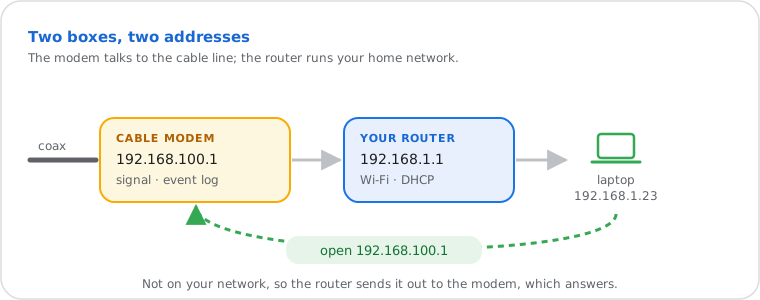
Type http://192.168.100.1 on any device at home. Your router passes the request to the modem, which answers.
- Be on your home network (Wi-Fi or cable). The internet doesn't need to work: the modem's page answers even when the line is down.
- Open
http://192.168.100.1. Most modems show the status first; some ask for a login (below). - Look for "Connection", "Status" or "Cable Status": downstream and upstream channels, power, SNR and error counts. The event log is under "Event Log" or Advanced › Administration.
- Take screenshots when the internet misbehaves. They're exactly what your provider's support asks for.
Which Modems Use It, and Their Logins
Username admin on almost all; the password is "password", part of the serial number, or printed on the label.
| Modem | Login |
|---|---|
| Arris SURFboard SB8200 | admin and the last 8 characters of the serial number on the label |
| Arris SURFboard S33, S34 | admin and password or the last 8 characters of the serial number; you then set your own |
| Older SURFboards (SB6141, SB6183…) | Status pages often open without a login |
| Netgear CM500, CM600, CM1000, CM1200 | admin / password (case-sensitive) |
| Netgear CM2000 | admin and the unique password on its label |
| Motorola, Hitron and others | On the label or in the quick start guide |
| Virgin Media Hub in modem mode | The settings password on the base of the Hub (not the Wi-Fi password) |
| Xfinity, Rogers gateways (modem and router in one) | Status is in the Admin Tool at 10.0.0.1 |
The address itself never changes: cable modems keep 192.168.100.1 even after a reset.
How to Read Your Signal Levels
Check three numbers on every channel: downstream power, downstream SNR and upstream power. Values near the limits cause slowdowns and drops.
| Number | Healthy, as a rough guide | What a bad value means |
|---|---|---|
| Downstream power (dBmV) | −15 to +15; best near 0 (about −7 to +7) | Too low: a loose connector, a splitter or a long or damaged cable. Too high: an amplifier you don't need |
| Downstream SNR (dB) | 30 or more (33 or more when power is below −6) | Noise on the line: damaged cable, bad connector, interference |
| Upstream power (dBmV) | About 35 to 51 with 3 or more upstream channels | Near or above the top: the modem shouts to be heard, usually a line problem; it drops out first in bad weather |
| Uncorrectables | Low and not climbing fast | Data lost on the line; "Corrected" counts are fine |
These are ARRIS's published acceptable ranges for its SURFboard modems (ARRIS allows up to 54 dBmV upstream with two channels and 57 with one). Your provider's own ranges win. On DOCSIS 3.1 modems the big OFDM channel shows MER instead of SNR: read it the same way, higher is better. Refresh the page a few times: one bad reading means little, a value that keeps sliding means a lot.
What the Event Log Tells You
The log lists every time the modem lost or rebuilt its connection: a few entries are normal, a daily pile is a line problem.
- T3 time-out ("No Ranging Response received"): the provider didn't answer the modem for a moment. Occasional ones are normal; dozens a day mean noise on the line.
- T4 time-out: contact lost long enough that the modem restarts its connection. You feel these as drops.
- "SYNC Timing Synchronization failure" or lost downstream lock: the modem lost the downstream signal, often a loose or bad cable.
- Times showing 1970 or "Time not established": the modem hadn't got the time yet, typical just after a restart.
Fix a Dropping or Slow Cable Connection
Tighten and simplify the coax, restart the modem, and if levels stay bad, send the provider your screenshots.
- Find out where the problem is. Good levels and a clean log but bad speed on Wi-Fi? It's your Wi-Fi or router: test with a cable, and check your latency. Bad levels or many T3/T4? It's the line, go on.
- Hand-tighten every coax connector, at the wall and on the modem.
- Remove what you can: unused splitters, extra lengths of cable, old amplifiers. Connect the modem as close to where the line enters the home as possible.
- Replace damaged or kinked cable, and connectors that are loose or corroded.
- Restart the modem (unplug 30 seconds) and read the levels again a few minutes later.
- Still bad? Call the provider with the screenshots and the log: the problem is often outside your home, and only they can fix it.
No need to update the modem's firmware yourself: on cable, the provider pushes it.
192.168.100.1 Not Working? Try These Fixes
It only answers on a cable modem: on fibre or DSL there's nothing there, and a modem-router in one uses its router address.
- Cable internet? Fibre and DSL boxes don't use this address: find your router's address instead.
- Modem and router in one box (Xfinity, Rogers, Cox gateways): try 10.0.0.1 or 192.168.0.1. A Virgin Media Hub in normal router mode answers at 192.168.0.1.
- Through your router it doesn't load? Plug a computer straight into the modem with a cable, then open it.
- Your router's own network is 192.168.100.x? Then the address clashes: change the router's LAN range (to 192.168.1.1, say).
- Page appears but the login fails? Turn off password managers, check the serial-number password, or restart the modem. Some providers lock the page on modems they rent.
What Is 192.168.100.1, Technically?
A private address from the 192.168.0.0/16 range (RFC 1918) that cable modems keep for their own management page.
Your router sends anything that isn't on your home network out through its internet port; a request for 192.168.100.1 reaches the modem there, and the modem answers instead of passing it on. That's why it works from any device at home, and before the modem is even online. Your devices get addresses from your router; websites see your public IP address.