How to Change DNS
Change your DNS settings on the router for every device at home, or on one computer, phone or console, then check it worked.
To change your DNS server for every device at home, log in to your router, find the DNS fields in its internet (WAN) settings, enter two addresses such as 1.1.1.1 and 1.0.0.1 (Cloudflare) or 8.8.8.8 and 8.8.4.4 (Google), save and restart it. For one device, change the same two addresses in its network settings. Then run a DNS leak test to check.
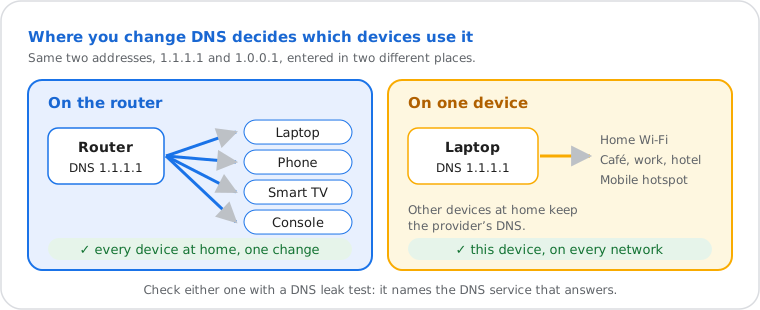
DNS settings are the two addresses (primary and secondary) of the DNS servers that turn website names into IP addresses. By default your router gets them from your internet provider and passes them to every device. To see the ones you use now: what is my DNS server.
Which DNS Addresses to Enter
Enter the primary and secondary address of the same provider, so the second one answers when the first doesn't.
| Provider | Primary · secondary | Good for |
|---|---|---|
| Cloudflare | 1.1.1.1 · 1.0.0.1 | Speed, nothing blocked |
| Google Public DNS | 8.8.8.8 · 8.8.4.4 | Speed and reliability, nothing blocked |
| Quad9 | 9.9.9.9 · 149.112.112.112 | Malicious sites blocked |
| Cloudflare for Families | 1.1.1.3 · 1.0.0.3 | Malware and adult content blocked |
IPv6 addresses, ad-blocking and family versions: best free public DNS servers. Which one is fastest from where you are: the DNS speed test.
How to Change DNS on Your Router
Open the router's page, find DNS in the internet (WAN) settings, switch it from automatic to manual, enter the two addresses, save and restart the router.
- Open the router's page: type its address in a browser, usually
192.168.1.1,192.168.0.1or10.0.0.1(find yours), and log in with the password on the router's label. - Find the DNS fields: usually under Internet, WAN or Network, sometimes under an "Advanced" section; on some routers they're in the LAN or DHCP settings instead.
- Switch to manual ("Use the following DNS addresses", "Use these DNS servers", "Manual") and enter the primary and secondary address.
- Save, then restart the router so its own DNS cache is cleared and every device picks up the change.
| Router | Where the DNS setting is |
|---|---|
| TP-Link | Advanced › Network › Internet › Advanced › Use the following DNS addresses › Save, then reboot (DSL modem routers: Advanced › Network › LAN Settings) |
| Netgear | Basic › Internet › Use These DNS Servers › Apply |
| ASUS | Advanced Settings › WAN › Internet Connection › WAN DNS Setting › DNS Server: Assign › Manual Setting › Apply (older firmware: Connect to DNS server automatically: No) |
| Linksys | Connectivity › Internet Settings › Edit › Static DNS › Apply |
| Ubiquiti UniFi | Settings › Networks or Internet › WAN › DNS Server: Manual › Apply |
| Provider routers | Often locked or hidden: change DNS on each device instead (below) |
Menus change between models and firmware versions; if yours differs, search your router's model with "DNS" on its maker's support site.
How to Change DNS on Your Device
The steps for the system you're using are open below; the change applies to that device only.
Windows 11
Settings › Network & internet › Wi-Fi (or Ethernet) › your connection's properties › DNS server assignment › Edit › Manual › turn on IPv4 › enter the preferred and alternate DNS › Save. Windows 11 can also encrypt the lookups there: DNS over HTTPS.
Windows 10
Control Panel › Network and Sharing Center › Change adapter settings › right-click your connection › Properties › Internet Protocol Version 4 (TCP/IPv4) › Properties › Use the following DNS server addresses › OK.
Mac
System Settings › Network › Wi-Fi › Details… next to your network › DNS › click + and add each address › OK.
iPhone and iPad
Settings › Wi-Fi › ⓘ next to your network › Configure DNS › Manual › Add Server. It applies to that Wi-Fi network only, not to mobile data.
Android
Settings › Network & internet › Private DNS (Samsung: Connections › More connection settings) › Private DNS
provider hostname › one.one.one.one, dns.google or dns.quad9.net. Android takes a
hostname, not an IP address; it's encrypted and works on Wi-Fi and mobile data.
Linux
Settings › Network › your connection › IPv4 › turn off automatic DNS and enter the addresses, or
nmcli con mod "name" ipv4.dns "1.1.1.1 1.0.0.1" ipv4.ignore-auto-dns yes, then reconnect.
ChromeOS
Settings › Network › your Wi-Fi network › Network › Name servers › Custom name servers.
PS5
Settings › Network › Settings › Set Up Internet Connection › your network › Advanced Settings › DNS Settings › Manual › Primary DNS and Secondary DNS › OK.
Xbox and Nintendo Switch
- Xbox: Settings › General › Network settings › Advanced settings › DNS settings › Manual.
- Switch: System Settings › Internet › Internet Settings › your network › Change Settings › DNS Settings › Manual.
Which DNS is best for gaming, and what it does and doesn't change: best DNS for gaming.
One browser only: Chrome and Edge ("Use secure DNS") and Firefox ("DNS over HTTPS") can use their own DNS provider, encrypted: how to turn it on.
Changing the DNS of a Domain? That's Its Name Servers
To move a website or domain to another DNS host, you change its name servers at the domain's registrar, not the DNS settings of your device.
Your registrar's dashboard lists the domain's name servers; replace them with the ones your new DNS host gives you. The change can take up to two days to reach every resolver. See the current ones with our NS lookup, and follow the change with the DNS propagation checker.
Check That the Change Worked
Run a DNS leak test: it should show the provider you just set, not your internet provider.
- Clear the old answers: flush the DNS cache on the device (on Windows,
ipconfig /flushdns), or restart it. - Run the DNS leak test: it names the DNS service that answers your lookups.
- On a computer:
nslookup example.comshows the server in its first lines; with the router method, that's the router's address, which forwards to the DNS you set. - Compare the speed: the DNS speed test times your new DNS next to the other public DNS servers, from your connection.
How to Undo the Change
Set the DNS back to automatic (DHCP, "Get DNS automatically", "Automatic") in the same place; your internet provider's DNS is used again.
On Android, set Private DNS to Automatic. On iPhone, Configure DNS › Automatic. If a site stops opening right after a change, undo it first, then follow the fixes in order.
Frequently Asked Questions
Should I change DNS on the router or on my device?
Is it safe to change my DNS server?
Why can't I change the DNS on my router?
Does changing DNS make my internet faster?
What are DNS settings?
What DNS server should I use?
How do I check that my new DNS server works?
Next steps