192.168.1.100 — Which Device Has It, and How to Open It
192.168.1.100 is a private address that usually belongs to a device on your network, not your router: it's the first address Linksys routers hand out, and the address Hanwha (Wisenet) cameras use when no router gives them one. Your router is usually 192.168.1.1, and its list of connected devices tells you which one has .100.
Which Device Is 192.168.1.100?
Your router knows: open its list of connected devices (often "Attached Devices", "DHCP Clients" or "Client List") and look for 192.168.1.100 with its name and MAC address.
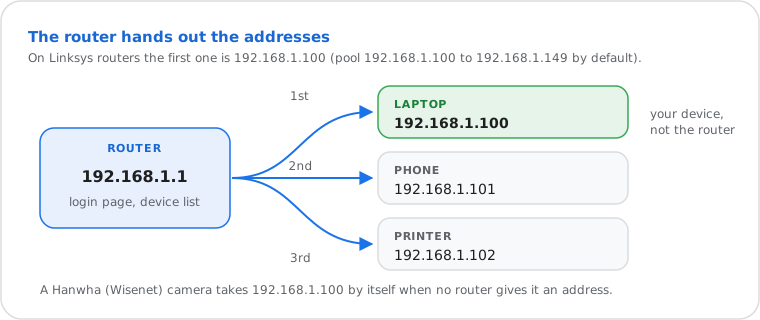
- Open your router's page (usually 192.168.1.1; your device shows its real address, below) and log in.
- Find the device list: "Attached Devices" (Netgear), "DHCP Client Table" or "Device List" (Linksys, TP-Link), "Network Map" (Asus), or the devices screen of your provider's app.
- Look at the name and MAC address next to 192.168.1.100. If the name says little ("Unknown", "ESP_3A2F1C"), paste the MAC address into a MAC address lookup: the maker (Apple, Samsung, Hanwha, HP…) usually gives it away.
Is it the device you're on? Check its own address:
Windows
Open Command Prompt and type ipconfig: "IPv4 Address" is your computer's address, "Default Gateway" your router's. arp -a lists the other devices your computer has talked to, with their MAC addresses.
Mac
System Settings › Wi-Fi › Details next to your network › TCP/IP: "IP address" is your Mac, "Router" the router. In Terminal, arp -a lists the devices nearby.
iPhone and iPad
Settings › Wi-Fi › ⓘ next to your network: "IP Address" is your phone, "Router" the router.
Android
Settings › Network › Wi-Fi › your network (gear icon): "IP address" and "Gateway". Menu names vary by phone.
Linux and Chromebook
Linux: ip addr for your address, ip route | grep default for the router, ip neigh for nearby devices. Chromebook: Settings › Network › your Wi-Fi › Network.
All devices, step by step: how to find your IP address and how to find your router's address.
Logging In to 192.168.1.100
There's no single login: you reach whatever device has the address. A router lives at its own address, so if you came to change Wi-Fi or router settings, open that instead.
| What answers at 192.168.1.100 | What you see, and the login |
|---|---|
| Hanwha (Wisenet) camera | Its web page. User admin; you create the password at the first login (there's no default one on current models). |
| Printer | Its status and settings page (ink, Wi-Fi, firmware). Often opens without a login; some ask for the PIN or password on the printer's label. |
| Storage drive (NAS), smart-home hub | Its own setup page or a redirect to its app. |
| A computer or phone | Nothing: computers and phones don't serve a web page, so the browser times out. That's normal. |
| Your router (rare) | Only if someone set it to .100. Its login is on the label or in the 192.168.1.1 guide. |
A camera or other device at 192.168.1.100 with its factory password is an easy target for anyone on your network: change the password at the first login, and keep it off the internet unless you need remote access.
Cameras and Recorders: Default Addresses
Security cameras often use a fixed factory address when no router hands them one: Hanwha uses 192.168.1.100, others pick nearby numbers.
| Address | Used by (factory default, before the router gives one) |
|---|---|
192.168.1.100 | Hanwha Vision (Wisenet, ex-Samsung) cameras |
192.168.1.200 | Hanwha encoders and decoders |
192.168.1.108 | Dahua cameras and many brands built on them (Advik, AVYCON…) |
192.168.1.10 | TVT cameras and recorders, Xmeye recorders |
192.168.1.30 | Uniview NVR (Wi-Fi kits) |
192.168.1.101 | Not a camera default: the second address a Linksys router hands out, after .100 |
To reach a camera on its factory address, your computer must be on the same network range (192.168.1.x). If your router uses 192.168.0.x or 10.0.0.x, connect the camera and the computer to a switch or straight to each other, give the computer an address such as 192.168.1.50 for the setup, then move the camera to your network. Easier: most brands have a finder app (Wisenet Device Manager, Dahua ConfigTool, Reolink Client) that locates cameras whatever their address.
Keep a Device on 192.168.1.100
Reserve the address in your router (DHCP reservation): the device keeps getting 192.168.1.100, and nothing else can take it.
You need this for a camera you open by its address, a printer, a game console or a server you forward ports to: port forwarding rules point at one address, and a device that changes address breaks them.
- Open your router and find "DHCP Reservation", "Address Reservation", "Static Lease" or "Manually Assigned IP".
- Pick the device from the list (or type its MAC address) and enter
192.168.1.100. - Save, then restart the device so it picks up the reserved address.
Setting the address by hand on the device itself works too, but choose one outside the router's range (on Linksys, below .100 or above .149), or two devices may end up with the same address. The difference between the two: static vs dynamic IP.
IP Address Conflict on 192.168.1.100
Two devices think they own 192.168.1.100, usually because one had it typed in by hand. Give one of them another address.
- Restart the device that shows the error, or turn its Wi-Fi off and on: it asks the router for a fresh address.
- Still there? Find the other device in the router's list (above). If one has 192.168.1.100 set by hand, switch it to automatic (DHCP), or reserve the address for it in the router.
- Two routers on one network (a second router or a mesh not in access-point mode) can both hand out .100: let only one of them do it.
192.168.1.100 Not Working? Try These Fixes
If nothing answers, either no device has the address, the device has no web page, or your network uses another range.
- Check your own range. If your router is 192.168.0.1 or 10.0.0.1, nothing on your network is at 192.168.1.100: look for the device in the router's list instead.
- Check the device is on and connected, then look for it in the router's device list: it may have another address now.
- A computer or phone at .100 doesn't show a page: that's normal.
- Try
https://instead ofhttp://: some cameras only answer one of the two, and show a certificate warning you can accept on your own network. - On the guest Wi-Fi? Guest networks can't see your other devices: join the main network.
What Is 192.168.1.100, Technically?
A private address in the 192.168.1.0/24 network, part of the 192.168.0.0/16 block that RFC 1918 reserves for home and office networks.
With the usual mask 255.255.255.0, the network holds 254 usable addresses, 192.168.1.1 to 192.168.1.254; the router takes one (usually .1) and hands the others to devices (see it in the subnet calculator). Millions of homes use 192.168.1.100 at the same time without conflict, because private addresses never travel on the internet: websites see your public IP address instead. More on the difference: public vs private IP.