Jitter Test |
- Jitter–
- Ping (median)–
- Min – max–
- Lag spikes–
- Timeouts–
Press start: the test sends a small request every 250 ms and draws each round trip.
Your recent tests (saved in this browser only)
| When | Jitter | Ping | Spikes | Timeouts | Server |
|---|
Measured in your browser against Cloudflare's edge. Nothing is sent to us. A browser request adds a few ms to a raw ping; jitter is barely affected.
A jitter test measures how much your ping varies from one moment to the next. Under 10 ms of jitter is excellent, under 30 ms is good for calls and gaming, and above 50 ms voices break up and games lag. Press start to measure yours, with lag spikes (ping spikes), live.
What Is Jitter?
Network jitter is the variation in delay between packets: if one packet takes 20 ms and the next 60 ms, the 40 ms difference is jitter.
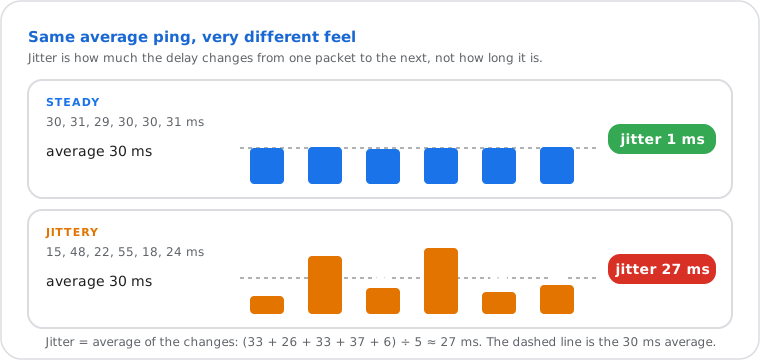
Live audio, video and games send a steady stream of small packets and play them as they arrive. When the delay keeps changing, packets come in bunches and gaps: calls sound robotic or cut out, video freezes, and game characters jump or "rubber-band". Apps hide a little jitter with a buffer, which adds delay, so a steady connection matters as much as a fast one. Films and downloads don't care: they buffer seconds ahead.
Speed tests calculate jitter as the average difference between consecutive pings, the method this page uses. RFC 3550, the standard behind voice and video calls (RTP), uses the same differences, smoothed over time. Games such as Counter-Strike 2 and Deadlock show the same idea as "net jitter" to their own server.
What Is a Good Jitter?
Under 30 ms is good for almost everything; competitive gaming wants under 10 ms.
| Jitter | Rating | What you notice |
|---|---|---|
| Under 10 ms | Excellent | Nothing: fine for competitive gaming and HD calls |
| 10–30 ms | Good | Calls and most games are smooth |
| 30–50 ms | Fair | Occasional choppy audio, small stutters in fast games |
| Over 50 ms | Poor | Robotic or cut-off voices, lag and rubber-banding |
| Use | Jitter | Ping | Source |
|---|---|---|---|
| Competitive gaming | Under 10 ms | Under 50 ms | Common guidance for fast shooters |
| Microsoft Teams calls | Under 30 ms | Under 100 ms round trip | Microsoft's network requirements for Teams |
| Voice over IP (VoIP) | Under 30 ms | Under 150 ms one way | Cisco voice guidance; ITU-T G.114 for delay |
| Streaming, browsing | Not critical | Not critical | Players buffer several seconds ahead |
Jitter vs Latency vs Packet Loss
Latency is how long a packet takes, jitter is how much that time varies, and packet loss is how many never arrive.
| What it measures | When it's bad | Good value | |
|---|---|---|---|
| Latency (ping) | Round-trip time to a server | Everything reacts late: delay in games, people talk over each other | Under 50 ms |
| Jitter | How much latency changes between packets | Stutter, choppy audio, rubber-banding | Under 30 ms |
| Packet loss | Share of packets that never arrive | Gaps in calls, teleporting players, freezes | 0% |
| Bandwidth | How much data per second the line carries | Slow downloads, low video quality | Depends on use |
A fast plan doesn't guarantee low jitter: a 1 Gbps line on bad Wi-Fi can jitter more than a 50 Mbps line on a cable. Check your bandwidth and latency under load with the speed test, and read what latency is for ping in detail.
What Causes High Jitter?
Wi-Fi and a busy line cause most jitter; a VPN, mobile data and an overloaded router cause the rest.
- Wi-Fi: walls, distance, neighbours' networks on the same channel and the crowded 2.4 GHz band make radio retries, which arrive late.
- Bufferbloat: when someone uploads, streams or downloads a game, the router's queue fills and your packets wait in it for a varying time. The speed test grades it as "latency under load".
- A VPN or a far server: a longer path through more networks, some of them busy.
- Mobile, 5G home internet and satellite: the radio link changes all the time; jitter of 20 to 50 ms is common.
- Background traffic: cloud backups, system updates, game launchers and cameras uploading video.
- Old or overloaded router, and evening congestion at the internet provider.
How to Fix High Jitter
Test on a cable first: it tells you whether to fix your Wi-Fi or your line.
- Use Ethernet for a gaming PC, console or work computer. If you must use Wi-Fi, stay close to the router on 5 or 6 GHz, or add a mesh point.
- Stop what fills the line during calls and games: pause backups, uploads and big downloads, or schedule them at night.
- Turn on SQM or QoS in your router (often called "Smart Queue", "fq_codel" or "CAKE"). It keeps the queue short, which cures bufferbloat.
- Restart and update the router. If it's more than five or six years old, a new one often helps.
- Turn off the VPN or pick a nearby server, and choose the nearest region in games.
- Test at different times. Still high on a cable at quiet hours? Copy your results and send them to your provider: the history on this page keeps your last five tests.
Net Jitter in CS2 and Deadlock: What It Means and How to Fix It
"Net jitter" in Counter-Strike 2 and Deadlock means game data reaching the server or your PC too late or not at all, so the game misses ticks: you see rubberbanding, late hits and teleporting players.
- Show it in the game. Settings > Game > Telemetry: turn on the Network Problems display. Valve's telemetry HUD counts the ticks missed because data didn't arrive on time.
- Run this test on the same connection. High jitter or lag spikes here: the problem is your own connection, so start with the fixes above (Ethernet, nothing downloading, SQM).
- Low jitter here, net jitter in the game: this test measures the path to Cloudflare's nearest data centre, so a clean result points to the route to the game's servers or the servers themselves. Pick the nearest region; if many players report it at the same time, it's on the game's side and only waiting or reporting it helps.
- In CS2, try "Buffering to smooth over packet loss / jitter" in the game settings: it adds a little delay to hide small gaps, which can feel smoother on an unstable line.
How This Jitter Test Works
| Part | Detail |
|---|---|
| Server | The Cloudflare data centre nearest to you, which serves this site; its airport code is shown above the results. The requests go to /cdn-cgi/trace, answered by Cloudflare's edge, not by our server. |
| Samples | One small request every 250 ms for 15, 30 or 60 seconds (60, 120 or 240 round trips). A first request opens the connection and isn't counted. |
| Timing | The browser's Resource Timing API: from sending the request to the first byte of the answer, on a connection already open (no DNS or TLS setup). Browsers can't send ICMP pings, so the values are a few ms above a raw ping. |
| Jitter | Average absolute difference between consecutive round trips. Ping: the median. Lag spike: a round trip at least 50 ms and twice above the median. |
| Timeouts | Requests without an answer within 2 seconds. Not packet loss: TCP resends lost packets, so loss shows as delay. |
| Not measured | Packet loss (needs UDP), jitter to a game server (the server's own network adds to it), and jitter while your line is busy (the speed test measures latency under load). |
| Your results | Never sent to us. The last five stay in your browser's local storage; Clear history removes them. |
| Last verified | 22 November 2026 |
Frequently Asked Questions
What is jitter on a speed test?
What is a good jitter?
How much jitter is acceptable for gaming?
Why is my jitter so high?
What is net jitter in CS2 and Deadlock?
Does a VPN increase jitter?
Does this test measure packet loss?
Next steps